








 Custom Search


Instructions
Things You’ll Need:
- USB Flash drive
- Latest stable version of TrueCrypt
-
1
Using TrueCrypt, you create a password protected encrypted file that is stored on the flash drive. This encrypted file acts as a "container", within which all the files you want encrypted are stored. When you connect your flash drive into a PC, this "container" gets mounted as a separate hard drive (provided you enter the correct password). And now, everything you save into this separate hard drive is encrypted automatically. This is where TrueCrypt really shines, providing transparent, real-time encryption. Plus, you don’t need TrueCrypt to be installed on the local computer.
-
2
Download the latest stable version of TrueCrypt here: http://www.truecrypt.org/downloads.php
-
3
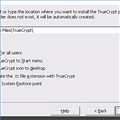
Install the software on your local computer (accepting all the default options)
-
4
Connect your USB flash drive to your computer. For this tutorial, let’s assume that it is assigned drive letter G:
-
5
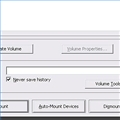
Start the TrueCrypt application. Click on the Create Volume button to start the TrueCrypt Volume Creation Wizard. This is where you create the "container".
-
6
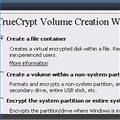
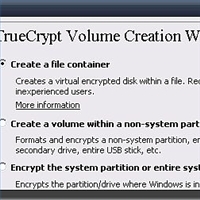
Select Create a file container (default option) and click on Next. This brings you to the Volume Type window. Here you can specify if you want your "container" to be a standard, visible file or if you want to create a hidden "container" (essentially a "container" within a "container"). For this tutorial, we’ll select the default option, Standard TrueCrypt Volume, and click on Next.
-
7
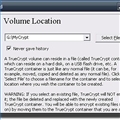
This brings you to the Volume Location window. Here you specify the filename and location of the "container". For this tutorial, let’s call the container "MyCrypt". And since your flash drive is mounted as the G: drive, specify your location and filename as G:MyCrypt, placing the container in the root of the flash drive. Click Next.
-
8
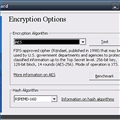
Next you need to select the Encryption Algorithm and Hash Algorithm. I won’t go into the details of the differences between the different options, their pros and cons. That would turn this tutorial into a book. For this tutorial, we’ll leave the defaults, as they should be sufficient. Click Next.
-
9
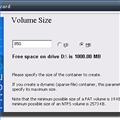
Next, you need to choose the size of the "container". This depends on the size of your flash drive and how much info you want to encrypt. Personally, I would suggest leaving anywhere between 10% to 20% of the drive unencrypted so that you have room for the TrueCrypt application files (about 6MB) as well as unimportant files that you might want to share or just don’t need encrypted. For this tutorial, using a 1GB flash drive, we’ll set the "container" to be 850MB. Click Next.
-
10
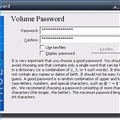
Next, specify the password you want to use to access and mount this "container". Select a strong password, that would be easy for you to remember and hard for anyone else to figure out. A strong password usually consists of at least 20 characters, and uses a combination of letters (both lower and upper case), and numbers. But at a minimum, it should consist of 8 characters. Click Next after you enter your password.
-
11
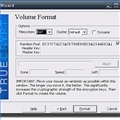
Next, you are ready to "format" the container. You can select the type of Filesystem and Cluster. For this tutorial, leave the default values. Move your mouse randomly within the Volume Format window to generate the encryption keys. Don’t worry; you are not going to have to remember these keys. When ready, click on Format to start. Depending on the size of the "container" (chosen in step 8), this may take up to 5 minutes.
-
12
Once the format successfully completes, you will get a pop up indicating that the "container" has been created. Click OK.
-
13
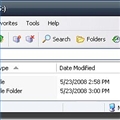
Close out of the TrueCrypt application. Using Windows Explorer or My Computer, navigate to the TrueCrypt directory, usually under C:Program Files. Copy the entire C:Program FilesTrueCrypt directory to the root of your flash drive. At this point you should have the MyCrypt "container" and the TrueCrypt directory (with application files) on your flash drive.
-
14
Finally, using notepad, create a file called autorun.inf and enter the following:
[autorun]
action=Mount TrueCrypt volume
open=TrueCryptTrueCrypt.exe /q background /e /m rm /v "MyCrypt"
shellstart=Start TrueCrypt
shellstartcommand=TrueCryptTrueCrypt.exe
shelldismount=Dismount all TrueCrypt volumes
shelldismountcommand=TrueCryptTrueCrypt.exe /q /d
The autorun.inf file, with the above entries, allows you to be prompted to mount the encrypted "container", every time you connect your flash drive. -
15
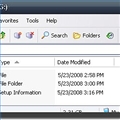
Save this file into the root directory of your flash drive.
-
16
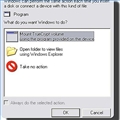
That’s it! Now, every time you connect your flash drive, you will be asked if you want to mount your encrypted "container". Select Mount TrueCrypt volume and click OK.
-
17
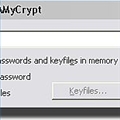
Next, you will be prompted to enter in the password you created for your encrypted "container". Enter your password and click OK.
-
18
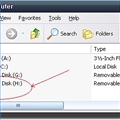
Your encrypted "container" will be mounted as a drive using the next available drive letter. In this case, it is the H: drive
-
19
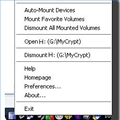
Now, every time you put a file into the H: drive, it will be encrypted automatically. To "disconnect" the drive, right-click on the TrueCrypt icon in your taskbar and select Dismount.